
Trello in CATAMA: Boards, Cards, and Kanban Right in the Automotive Software
Connect your Trello account to the CATAMA automotive software and work with your boards, lists, and cards directly within the workshop software—as a Kanban board with drag-and-drop functionality, including the ability to create, move, and comment on cards, as well as preview media. No more constantly switching between programs.
Hybrid login · Tokens per user · Open API & MCP
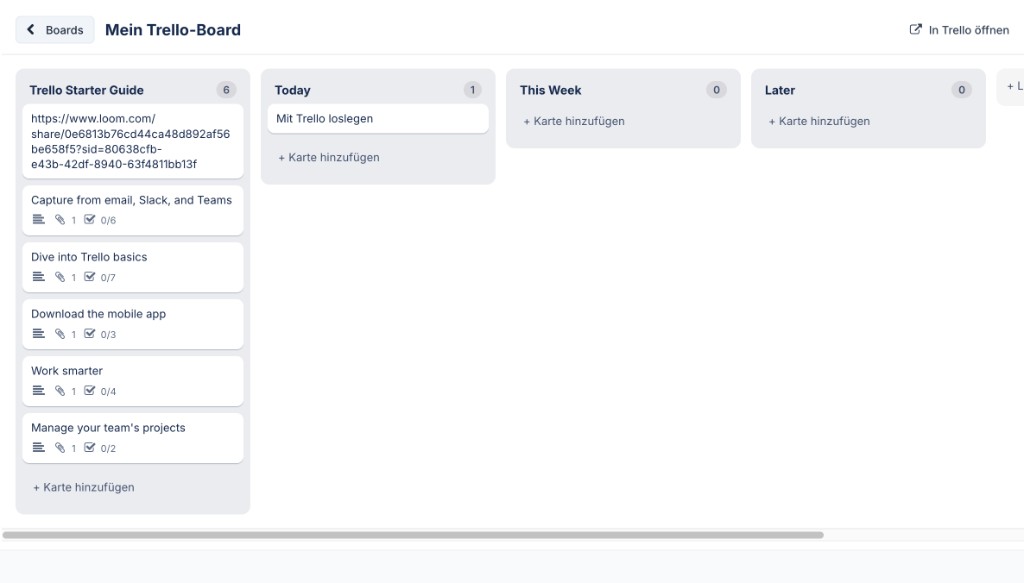
Use Trello boards directly in CATAMA
All key Trello features—without leaving CATAMA. From the board overview to interactive Kanban.
Boards & Lists
View all open boards and their lists clearly and open them with a single click.
Kanban with Drag & Drop
Easily move cards between lists by dragging them—the status is updated directly in Trello.
Create & Edit Cards
Create new cards and edit titles, descriptions, and due dates—all directly from CATAMA.
Comments
Comment on cards and view the history—for seamless coordination within the team.
Media & Covers
Cover images and link previews from Loom, YouTube, or uploaded images are displayed directly on the card.
Secure Hybrid Login
A global API key plus a personal token for each user—everyone sees only their own boards.
How to Use Trello in CATAMA
Kanban board right in CATAMA
Open a board and view all lists and cards in Kanban view—including labels, due dates, comments, and covers. Move cards via drag-and-drop, create new ones, and keep track of progress at all times.
- Lists and Cards as Kanban
- Drag & Drop Between Lists
- Labels, due dates, and covers
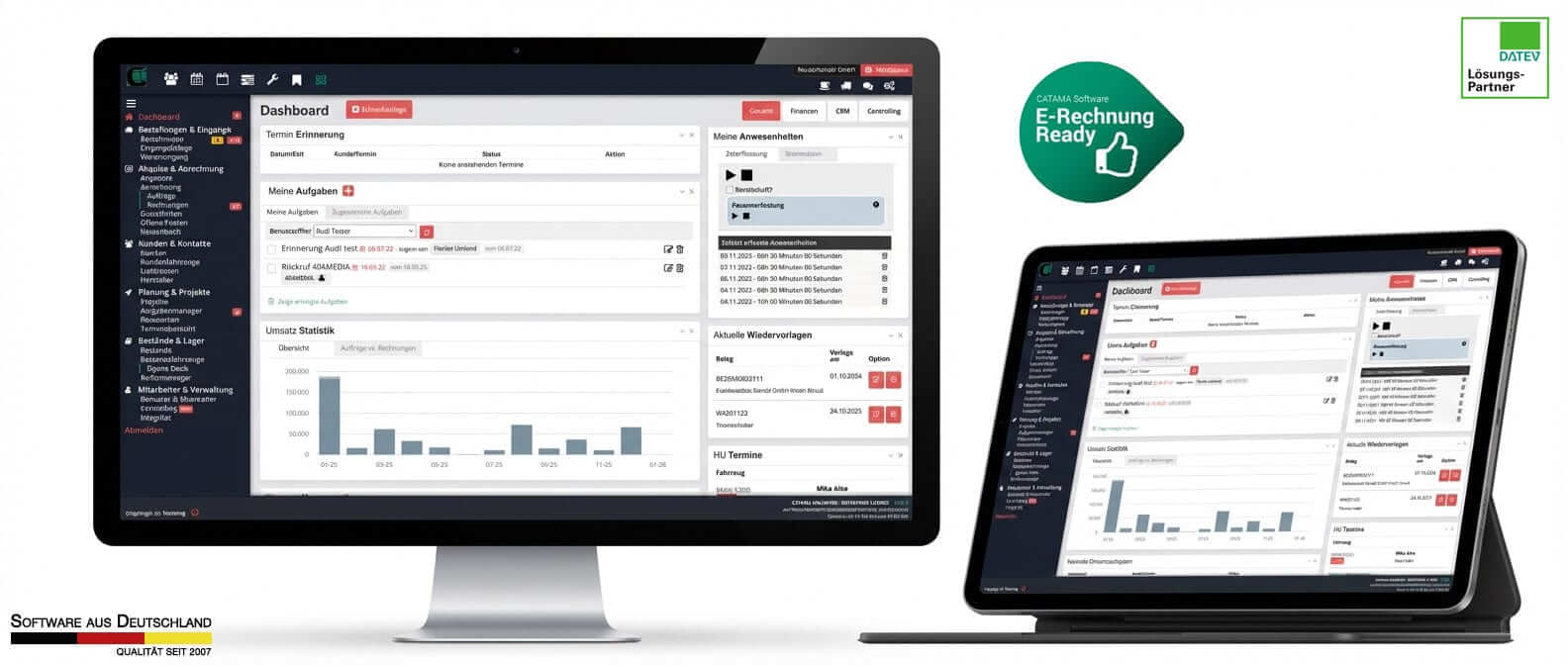
Secure connection: One token per user
The Trello API key is stored once, centrally, in the system settings. Each employee then connects their own Trello account using a personal token—this keeps access strictly separated and ensures that every change is attributed to the correct user.
- Global API key in the system settings
- Personal token per user
- Correct attribution for every action
Why Use Trello with CATAMA
Tasks, projects, and day-to-day workshop activities all in one place—fewer tool switches, better overview.
Frequently Asked Questions About the Trello Integration
What do I need for the Trello integration?
A Trello account and a Trello API key. The administrator enters the key once in the system settings; each user then connects their own account using a personal token.
Where do I activate Trello in CATAMA?
In the system settings, under the API tab, enter the Trello API key and enable the integration. After that, the "Trello Boards" menu item will appear, and each user can connect their Trello account in their own profile.
Do all employees see the same boards?
No. Because users log in with a personal token, each user sees only the boards that their own Trello account has access to.
Can I create and move cards?
Yes. You can create cards, edit them, move them between lists using drag-and-drop, add comments, and set due dates—all directly in CATAMA.
Are there any additional costs?
The Trello integration is part of the CATAMA interfaces. For Trello itself, the terms of your respective Trello plan apply.
More in the CATAMA ecosystem
All integrations
Parts catalogs, vehicle marketplaces, online stores, and more—an overview of all integrations.
Open API & MCP
Standardized REST API and MCP interface for custom integrations and AI workflows.
CATAMA Software
Workshop, inventory management, auto dealership, and office functions—all in one solution.
Connect Trello and CATAMA
Try CATAMA for free for 14 days or get a personal demo to see the Trello integration in action.