
According to his own account, a used-car dealer in northern Germany was losing about four hours a week simply by having to enter vehicle data twice—once in the DMS and once on Mobile.de. Four hours that weren’t spent on sales conversations, test drives, or sourcing new inventory. This is exactly where the Mobile.de API in CATAMA comes in: It connects the central vehicle file directly to Germany’s most widely reached classifieds portal—automatically, bidirectionally, and scalable to multiple locations. By maintaining a single inventory source instead of manually copying data, dealers save time, reduce errors, and get vehicles online faster.
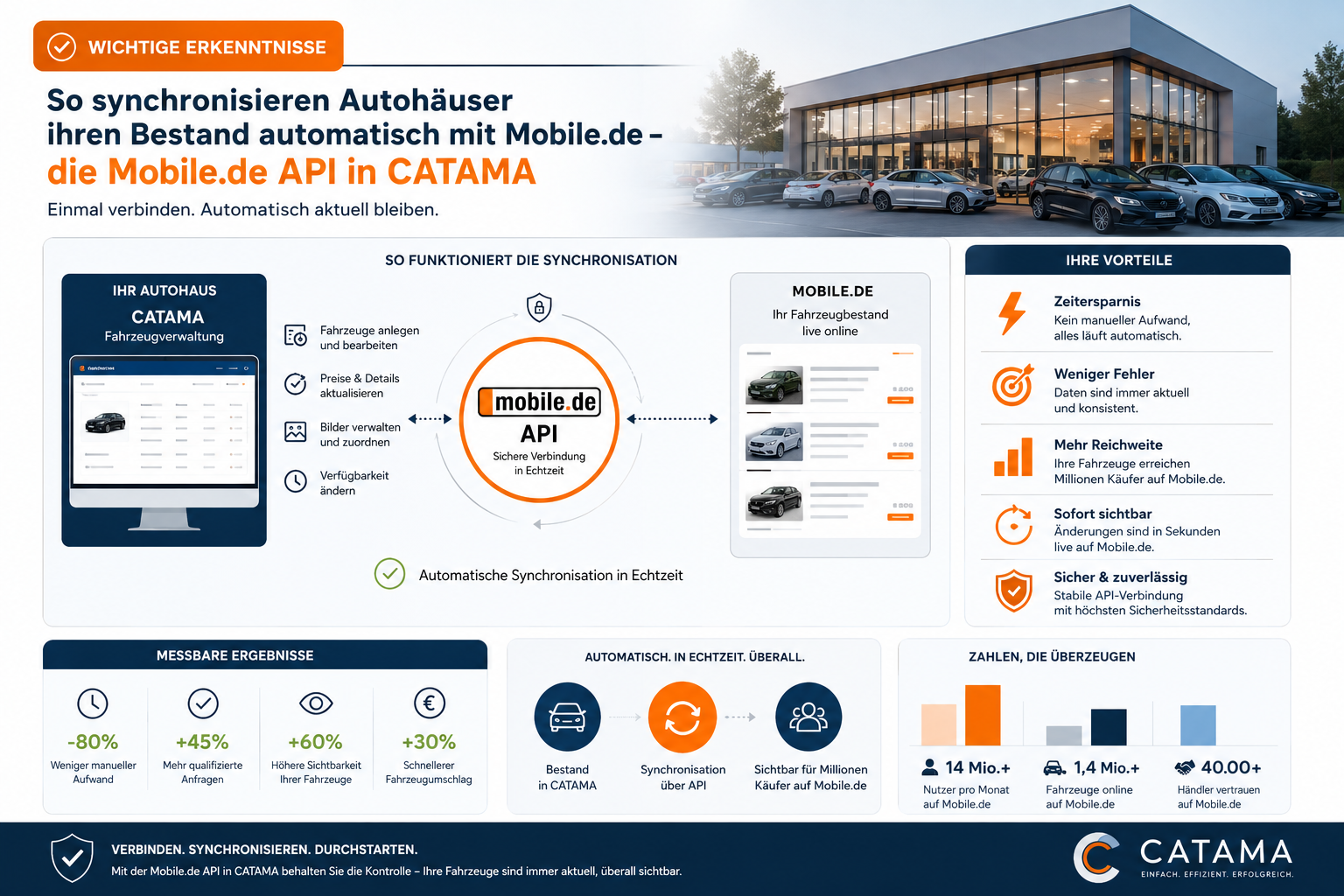
Key Takeaways
- The Mobile.de API in CATAMA synchronizes vehicles in inventory bidirectionally: Listings are created, updated, and can be reimported from Mobile.de.
- Two sync modes: Bulk sync for syncing multiple vehicles in the background, and individual sync for immediate updates to individual listings.
- Branch-compatible: Each branch can store its own Mobile.de login credentials, with a fallback to global credentials.
- Photo Sync (up to 15 photos per vehicle), Mobile.de Editor with overrides and status transparency for each vehicle.
- Result: less duplicate work, consistent listings, faster time to market—a single source of truth for the entire marketing process.
1. The Problem of Duplicate Maintenance at Car Dealerships
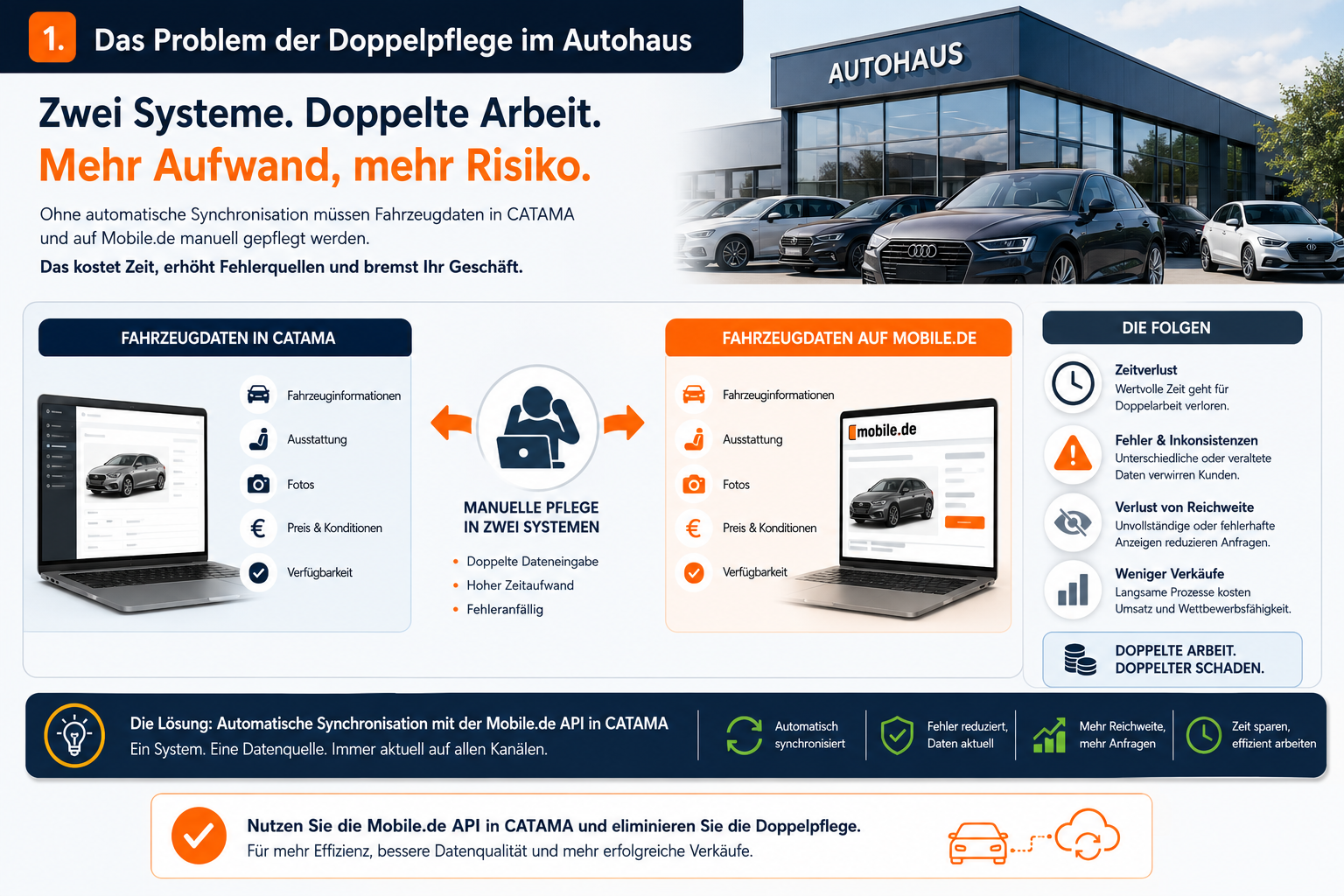
At many car dealerships and auto repair shops with inventory, the same process repeats itself every day: A vehicle is purchased, entered into the internal system, and its details—including photos, features, price, and technical specifications—are updated—and then the same information is manually entered again on Mobile.de. This effort is repeated with every price adjustment, every new description, and every additional photo.
The consequences are well known:
- Error rate on the rise: typos, missed fields, incorrect odometer readings.
- Outdated Prices: Price reductions are updated in the DMS, but the old price remains listed online for weeks.
- Missing photos: New photos from the editing process are not included in the listing.
- Wasted time: Employees spend hours on data maintenance instead of sales.
The key message of this article: CATAMA consolidates the vehicle record as a central data source and transfers it to Mobile.de via API. The solution is therefore aimed at used-car dealers, multi-brand dealerships, and repair shops with a sales inventory that want to streamline their marketing process. The article on the benefits of centralized vehicle and customer management also provides a more in-depth look at the advantages of centralized data management.
2. What the Mobile.de API Does in CATAMA
The integration is more than just a simple data export. It is a bidirectional connection to the Mobile.de Seller API.
Bidirectional data flow
- Outbound: Vehicles from CATAMA are listed or updated as ads on Mobile.de.
- Inbound: Existing Mobile.de listings can be imported into CATAMA — ideal for migrations or for transferring legacy data.
Two Synchronization Methods
| Sync Mode | Purpose | Description |
|---|---|---|
| Bulk Sync | Transmit data from multiple vehicles simultaneously | Background Task, Queue |
| Single Sync | Create or Update Immediately | Right in the Vehicle Editor |
Photo Uploads and Status Transparency
Vehicle images can be transferred directly from the CATAMA vehicle file to the Mobile.de listing. This feature can be enabled on a per-branch basis. In addition, the system displays for each vehicle whether it has already been synchronized, which listing ID has been assigned on Mobile.de, and when the last synchronization took place.
"One vehicle record, one click, one consistent listing—that's the basic idea behind the Mobile.de API in CATAMA."
3. Prerequisites and Setup
3.1 What Mobile.de Must Provide
Three components are required for the connection:
- An active Mobile.de merchant account with Seller API access enabled (must be requested separately from Mobile.de).
- The Seller ID (numeric identifier for the merchant account).
- API username and API password for technical authentication.
Mobile.de provides these login credentials upon request. They are not the same as the login credentials for the web portal.
3.2 Configuration in CATAMA
Setup is performed in the system settingsunder the “mobile.de Login Credentials” tab. The Seller ID, username, and password are entered there. A “Test API Data” function is available directly in the interface, which checks the connection before the first vehicle is synchronized.
In addition, the option “Transfer vehicle photos to Mobile.de” can be enabled or disabled on a per-location basis. This is useful if individual branches use their own image sources or want to manage bandwidth in a targeted manner.
3.3 Branch-Specific Accounts for Multi-Location Retailers
Retailer groups with multiple locations benefit in particular: Each branch can use its own Mobile.de account. If no local login credentials are available for a location, the system automatically falls back on global credentials. This makes it easy to combine centralized and decentralized marketing strategies—for example, when the main brand places ads centrally, but individual sub-brands manage their own ad accounts.
For more detailed information on multi-location management, see the overview of CATAMA's auto repair shop software.
4. The Typical Workflow: From Inventory to Online Listing
4.1 Add a Vehicle in CATAMA
The first step is to register the vehicle in the central vehicle management system. This includes:
- Master Data: VIN, HSN/TSN, Date of First Registration, Mileage
- Technical Specifications: Power, Displacement, Fuel Type, Transmission
- Features: Special Equipment, Packages, Colors
- Price: Gross price, VAT treatment, price type
- Photos: Exterior, Interior, Close-ups
Next, the sync settings are updated: the vehicle type, Mobile.de category, and make and model are mapped to the Mobile.de classifications.
4.2 Enable Synchronization for Each Vehicle
For each vehicle , there is an option to “Synchronize with Mobile.de.” Only available vehicles with an active sync flag are transferred. This ensures that reserved, sold, or internal vehicles are reliably excluded.
4.3 Start Bulk Sync
The bulk transfer is initiated via a central sync button in the inventory overview. A background task places all selected vehicles in a queue. Progress can be viewed at any time via the task info (truck icon)—including an error log in case individual transfers fail.
4.4 Send a Single Vehicle Immediately
In the Vehicle Editor, the “Send Data to Mobile.de” tab opens the individual sync feature. Here, you can create new listings or update specific ones—for example, if there’s a price change, a new description, or an additional feature. You don’t need to resync your entire inventory to do this.
5. Mobile.de Editor: Full Control Over Listing Data
The Mobile.de API in CATAMA offers more than just a data transfer function. A built-in Mobile.de editor provides full control over all listing-specific fields.
5.1 Reading Live Data from Mobile.de
With the click of a button, the editor retrieves the current data for an existing ad. This allows for a direct comparison: What’s in CATAMA, and what’s online? Discrepancies become apparent before they lead to complaints or lost sales.
5.2 Editable Fields Directly in CATAMA
The following data fields can be fully managed in the Mobile.de Editor:
- Key Details: Model Description, Condition, Mileage, Date of First Registration, Number of Previous Owners
- Price: Gross price, VAT rate, price type (fixed price or negotiable)
- Specifications: Power in kW and PS, engine displacement, fuel type, transmission type, exterior and interior colors, air conditioning
- Fuel Consumption and Emissions: CO₂ emissions, city/highway/combined fuel economy, efficiency class, environmental sticker
- Features: ABS, navigation system, heated seats, all-wheel drive, LED headlights, trailer hitch, and many other options
- Description text: Free-form text for the ad description with formatting options
5.3 Overrides Instead of Duplicate Maintenance
An important concept: overrides. Mobile.de-specific adjustments are saved separately without altering the master data in the CATAMA vehicle record. The central vehicle record remains the foundation; fine-tuning for the listing is possible at any time. This ensures there is no conflict between internal data (e.g., for accounting) and the public display in the listing.
This distinction is particularly valuable when, for example, internal designations are more technical than the marketing-oriented ad description—see also our background information on HSN, TSN, and KBA codes.
6. Photo Sync: Upload photos online with a single click
In online car sales, photos are the most important conversion driver after price. Photo synchronization transfers the images from the CATAMA vehicle file directly to Mobile.de.
Key points:
- Re-Sync replaces existing images: no duplicates, no outdated images
- A maximum of 15 photos per vehicle (Mobile.de limit)
- Activation per branch: useful if not every location is supposed to sync images
- Order is preserved: the sorting from CATAMA is carried over to Mobile.de
Tip: Check the quality and order of your images before the first sync. A consistent visual style (e.g., front view first, then side view, rear, interior) noticeably increases the click-through rate.
7. Import: Import existing Mobile.de listings into CATAMA
Anyone switching from another system or who has previously only listed items directly on Mobile.de faces a common question: How do you transfer your existing online inventory to CATAMA? The answer lies in the import workflow.
CATAMA displays an overview of all Mobile.de listings associated with the dealer account. For each listing, you can see whether it is already linked to a vehicle in the CATAMA inventory. Listings that are not linked can be transferred to new inventory vehicles using the import function. Master data, technical specifications, and existing images are carried over during this process.
This is especially useful for:
- System Migration from an Old DMS to CATAMA
- Taking Over Inventory When Purchasing from Another Dealer
- Retroactive System Migration to Centralized Data Storage
8. Real-World Scenarios: How Retailers Use the Mobile.de API in CATAMA
Scenario A: Day-to-Day Operations at a Car Dealership
A new vehicle is purchased, entered into the CATAMA vehicle file, tagged with photos, and synced—and is visible online on Mobile.de within minutes. The entire process requires no additional data entry.
Scenario B: Price Adjustment
The price of a vehicle in stock is reduced in CATAMA. Click on "Single Sync," and the Mobile.de listing is updated. There's no longer any risk that the price listed online will be higher than the price quoted over the phone.
Scenario C: Multi-location retailer
Branch A uses its own Mobile.de account for its main brand, while Branch B posts ads under a different sub-brand. Both locations are managed centrally in CATAMA, and synchronization is performed with the correct Mobile.de account in each case. Centralized workshop planning and management remain unaffected.
Scenario D: System Change
A dealer is switching from a legacy system to CATAMA. Instead of entering each item in inventory from scratch, the existing Mobile.de listings are imported. The inventory is then managed centrally through CATAMA—the old system can be phased out.
9. Benefits at a Glance
| Advantage | Impact on Day-to-Day Operations |
|---|---|
| Time savings | No manual duplicate entries |
| Fewer mistakes | One data source, consistent listings |
| Rapid Time to Market | Vehicles Available Online in Minutes |
| Status Transparency | Sync status visible for each vehicle |
| Scalability | Single vehicle or entire fleet |
| Scalability | Multiple locations, multiple Mobile.de accounts |
| Overrides | Mobile.de Fine-Tuning Without Master Data Conflicts |
Anyone interested in learning more about the economic benefits of such automation will find specific calculation examples in the article “How Auto Repair Shops Save Time and Money with CATAMA Software.”
10. Technical Overview: How the Mobile.de API Works in CATAMA
For readers interested in the technical side, here's a quick look under the hood:
- REST Interface: The Mobile.de Seller API is accessed via REST using a JSON payload.
- Bulk Upload API: For large amounts of data, the Mobile.de Upload API is also used, which accepts ZIP archives containing XML data records and images.
- Background Processing: A task runner controlled by Cron processes the queue. This ensures that synchronization does not block the user interface.
- Robust error handling: If a listing no longer exists on Mobile.de (e.g., after being manually deleted), CATAMA automatically recreates it during the next synchronization.
- Sandbox Mode: Before going live, configurations can be tested in a test environment to prevent incorrect listings.
This architecture ensures stability even for fleets consisting of several hundred vehicles—an important criterion for dealer groups and wholesalers. The article on the benefits of industry-specific software for automotive repair shops provides a general overview of industry-specific software architectures.
11. Conclusion and Next Steps
The Mobile.de API in CATAMA transforms the vehicle record into a central hub for all online marketing. Instead of maintaining data in duplicate, this creates a single, consistent data flow from purchasing through preparation to the listing. Bidirectional sync, branch-compatible access credentials, the Mobile.de editor with overrides, and a robust bulk sync cover all relevant workflows—from individual vehicles to the inventory of a multi-location dealer.
Those who benefit the most are:
- Used-car dealers with high inventory turnover
- Multi-brand locations with separate advertising accounts
- Repair shops with inventory that still maintain two systems in parallel today
- Retail groups that want to centrally manage multiple stores
Next Steps
- Request a demo: See the Mobile.de integration in action with a real inventory.
- Try CATAMA: Get started with the right edition—you can find an overview of all packages on the CATAMA Automotive Software – Solutions and Pricing page.
- Set up a branch manager: Enter your Mobile.de seller ID, username, and password, test the connection—and get started with an initial test sync on a single vehicle.
- Import Inventory: If you're already listing items on Mobile.de, you can import your listings into CATAMA.
Those who make the switch from manual dual data management to automated marketing gain more than just time. They gain data quality, scalability, and a competitive advantage that pays off vehicle by vehicle.
